Please note that Microsoft Education can get updated without notice. ATS resources will get updated with the new changes once the new behaviour is confirmed.
Creating and managing Microsoft Teams meetings within Blackboard offers many of the same functionalities as Teams meetings created from your Teams app, browser, or calendar. However, there are a few important key differences that you should be aware of when creating and managing Teams meetings within Blackboard.
Teams meetings can be created from the Microsoft Education tool, available from the Content Market. For details on Teams integration and general Teams features, please refer to the related resources at the end of this article.
How do instructors and students create a Teams meeting?
-
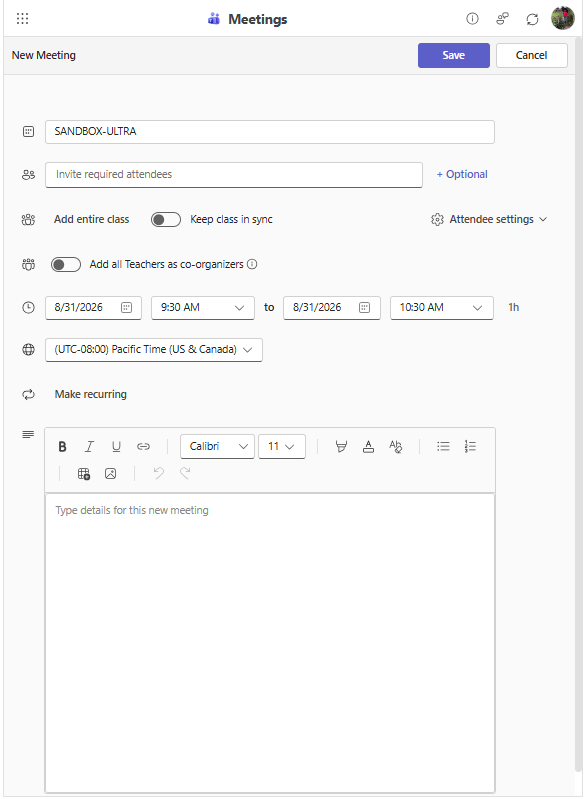
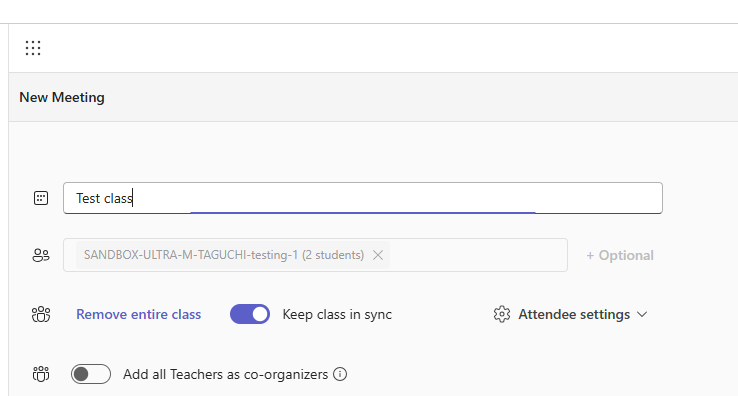
In Microsoft Education, select New Meeting and add a descriptive title including your course name and section. For example: “ENGL 1130-001 Wednesday evening class”
-
You can invite attendees individually by typing their name, clicking Add entire class, or clicking Allow anyone to join via Attendee settings.
-
Add a date and time for the meeting. Select Make recurring if applicable.
-
Add details to the meeting and click Save.
-
Attendees will be notified by email of the meeting if they were added to the invite field list.
Important:
-
It’s good to add extra details to meeting titles if students have similar classes.
-
Students have the ability to create meetings with their instructors, classmates, and other users in Douglas College. Instructors and administrators are not able to view, edit, or delete these meetings.
-
Toggle on “Keep class in sync” if you wish for the meeting invite list to get updated whenever students are added or dropped from your class.
What meeting options should I choose?
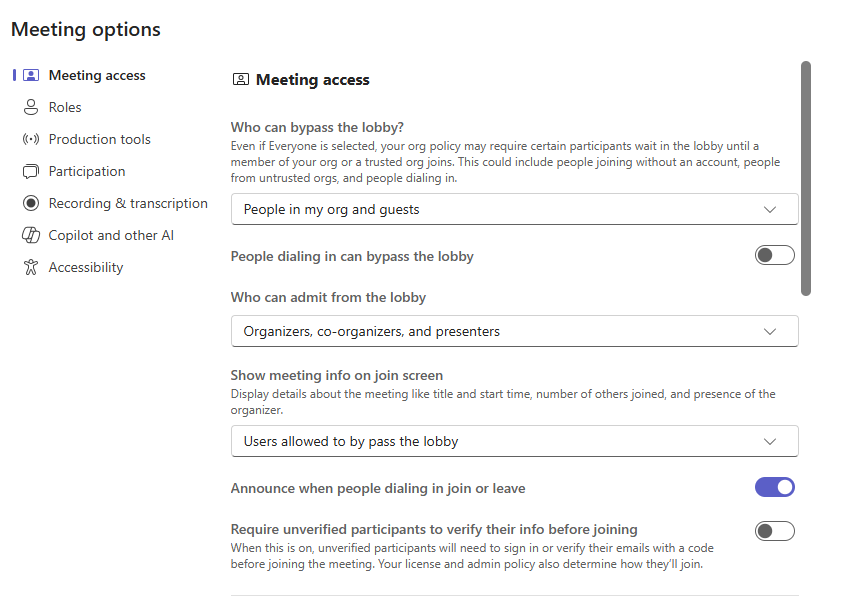
You can alter default meeting settings after creating the meeting. To change these settings, click Edit to the right of the meeting and select Meeting Options on the top right.

Key features:
-
Meeting access:
-
Bypassing lobby: Decide who can bypass the lobby and admit participants. Choosing People in my org means students who did not use their Douglas College credentials would have to be manually admitted. If you don’t want any students in the meeting before you, choose Only Organizers and Co-organizers.
-
-
Roles:
-
Co-organizers: Choose one or more participants to be co-organizers if applicable. Co-organizers cannot edit meetings, but can present content, manage breakout rooms, change participant roles, etc.
-
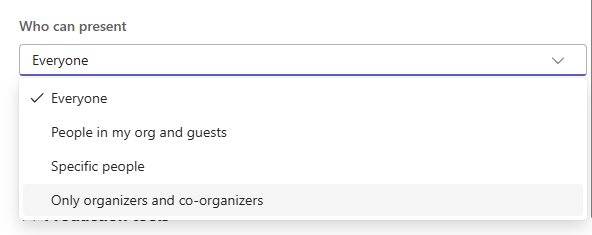
Presenting: By default, everyone in the meeting is a presenter. Presenters can share content, mute other participants, start/stop recordings, and remove members.
-
We recommend that you change the default of who can present to Only organizers and co-organizers.
-
Participation: By default, participants can use their mics, cameras and react during meetings. Meeting chat is on by default during and after the meeting. If you don’t want students to have the ability to chat after the meeting, change this to In-meeting only.
-
Recording & transcription: By default, recordings have to be turned on manually during the meeting. Toggle this option on to have meetings automatically recorded.
More information:
How can you join meetings?
There are three main ways to join Teams meetings:
-
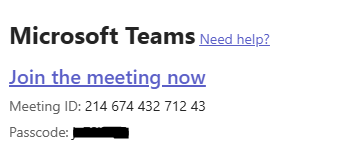
If you are invited to meetings, you will receive an email notification. Join the meeting by clicking the Join the meeting now link in the email.
-
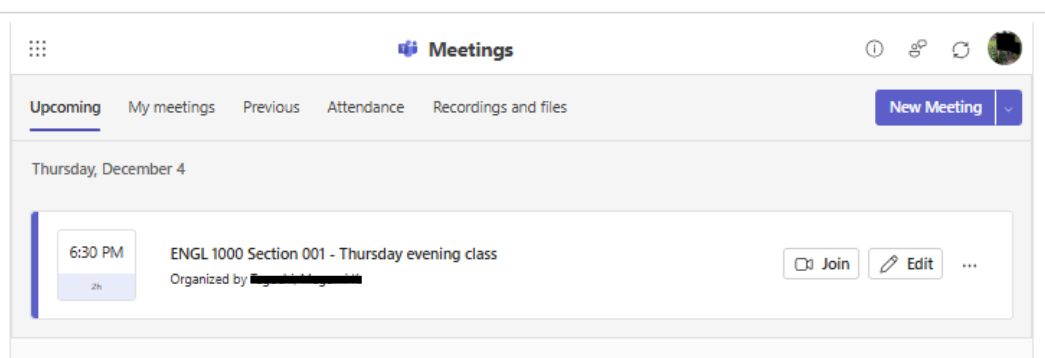
You can join the meeting within Blackboard by selecting Microsoft Education in the Content Market on the Content page, selecting the Join icon to the right of the meeting you wish to join.
-
Meetings created in Blackboard will appear in your Microsoft 365 calendar. Select the meeting, then choose Join.
-
When joining meetings, it is best to use the Teams app. Instructors can only create breakout rooms in the Teams app.
-
Students should log in to the Teams app or the browser before joining meetings. Otherwise, the instructor will have to admit the student to the meeting as a guest.
How do I invite external guests to my meeting?
-
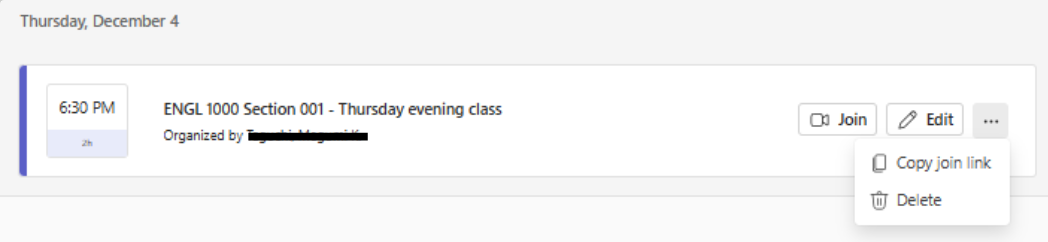
In your meeting list, select the three dots to the right of the meeting name and choose Copy join link from the dropdown menu.
-
Send the link to the external guest.
-
If the guest is joining from a desktop device, they do not need to have the Teams app. If they join via their mobile, they will be prompted to get the Mobile app.
-
The guest can either sign in to Teams and use an existing account, or join without signing in and using a nickname.
Who can share screen in Teams meetings?
Organizers, Co-organizers, and presenters can share content in Teams meetings. Attendees are not able share content in the main room, but are able to share content in breakout rooms.
By default, everyone in the meeting is a “presenter” unless their role is changed in your Blackboard Teams meetings. To change this, go to your meeting and click on Meeting options. We recommend that you choose Only organizers and co-organizers.
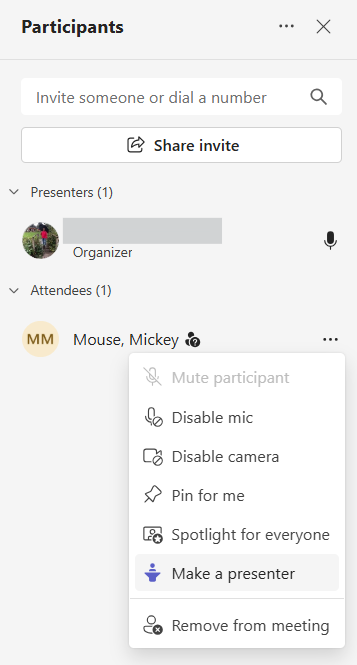
If a specific student would like to share screen in the main room, but is an attendee in the meeting, click on the three dots next to their name and select Make a presenter.
How can I use the Whiteboard in Teams meetings?
Method 1 (recommended when not recording):
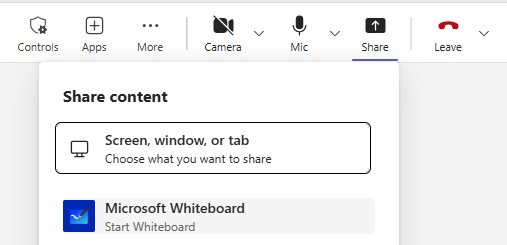
Organizers, Co-organizers, and Presenters can use Whiteboards in Teams meetings via the Share tool and clicking on Microsoft Whiteboard. We recommend this method if you are not recording your Team meeting.
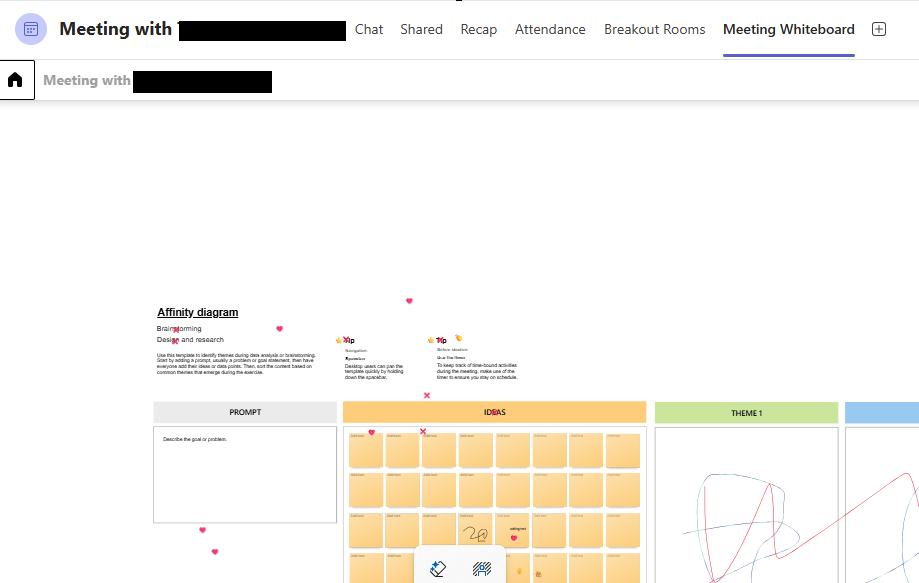
The Whiteboard can be accesed after the meeting via the Meeting Whiteboard tab in the meeting channel.
Method 2 (recommended when recording):
If you record using method 1, only audio will be recorded. However, if you wish to collaborate with students using a Whiteboard and wish to record, we recommend taking the following steps. As there are quite a few steps, it is advisable copy the whiteboard link (Steps 1-4) before students arrive.
-
In your meeting, select the Share tool and choose Microsoft Whiteboard. Choose a template or start with a blank Whiteboard and if your students will collaborate on the Whiteboard with you.
-
Select Open in browser in the top right corner.

-
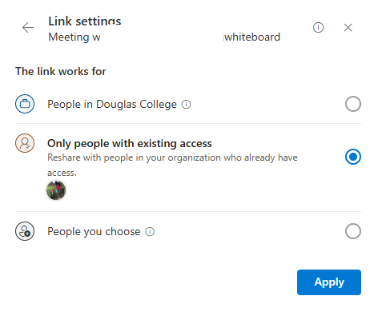
Share the Microsoft Whiteboard link: Click on Share > gear icon > select Only people with existing access > Apply.
-
Select Copy link and share the link in the chat.
-
Instruct students to enter the whiteboard via the link.
-
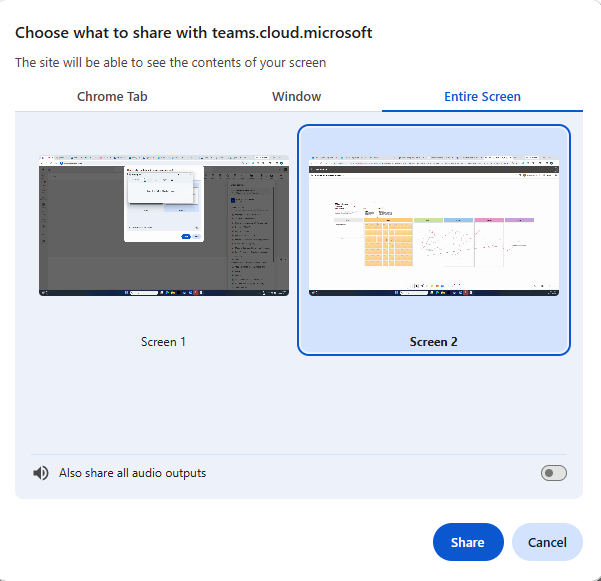
Select the Share tool again and select Screen, window, or tab. This step will allow you to record the Whiteboard.
-
Choose if you want to share the Whiteboard by sharing the entire screen, window, or tab. Select Share at the bottom of the pop-up. Students do not need to follow what you are showing on the screen as they will have direct acces to the whiteboard.
-
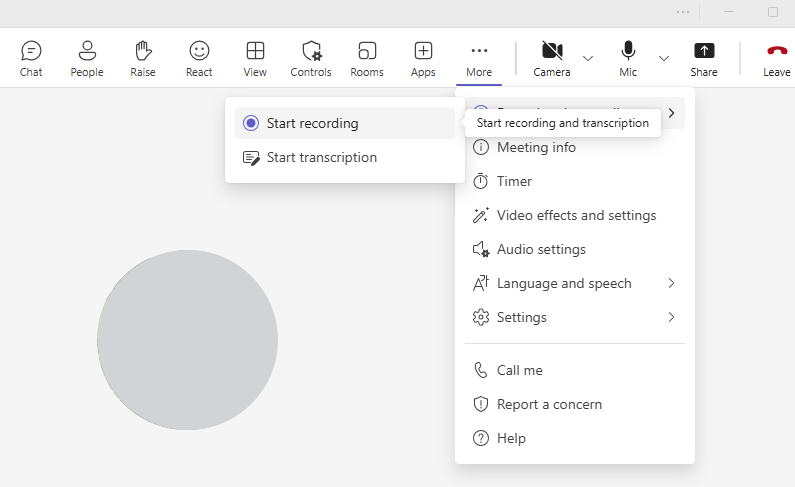
Select the three dots in the tools bar > Record and transcribe > Start recording.
-
The Whiteboard can be accesed after the meeting via the Meeting Whiteboard tab in the meeting channel.
This method works best with two screens with your whiteboard open in one screen, and your Teams desktop application open in another.
For more details on how to use a Whiteboard in a Teams meeting, check the link below.
More information:
Can I record Teams meetings?
You can manually start and stop recording and transcribing meetings from the More actions button (…) in the meeting controls.
More information: Record a meeting in Microsoft Teams
How can students see Teams meeting recordings?
-
OneDrive: Students can access the meeting recording in their OneDrive if they were invited to the Teams meeting or attended.
-
Recordings tab: If students were invited to the Teams meeting, they will see the meeting recording in the Recordings tab within Microsoft Education. However, if you only chose Allow anyone to join, instructors must click Share with class via the three dots to have the recording available in the Recordings tab. All enrolled students will then be able to see the recording.
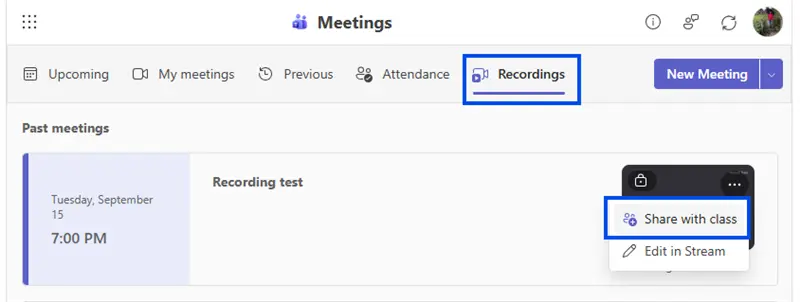
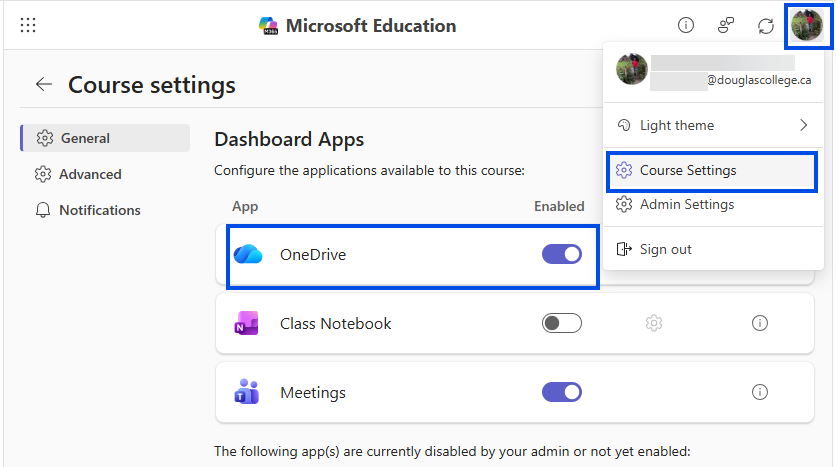
Note: You must turn on OneDrive in Microsoft Education in order to access Share with class. You can turn it on in Course Settings in Microsoft Education by clicking on your profile image. In General settings, toggle on OneDrive.
-
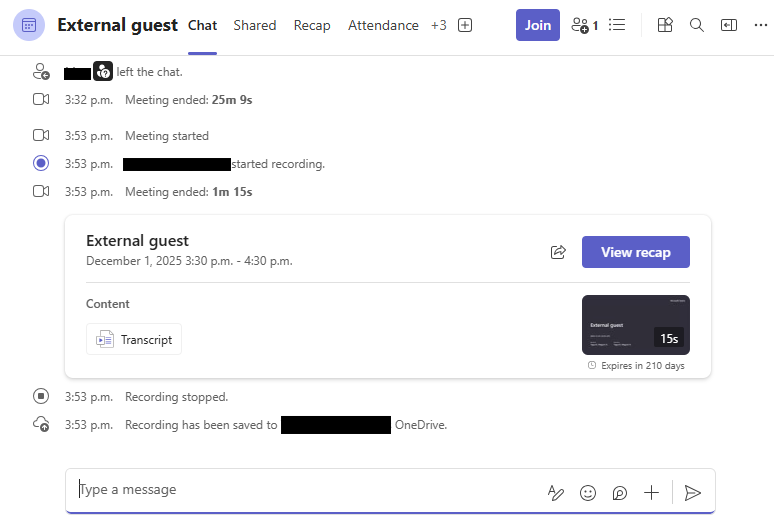
Teams meeting channel: Students who were invited to meetings or joined without being invited can view the recording in the Teams meeting chat.
How can I find attendance reports for meetings?
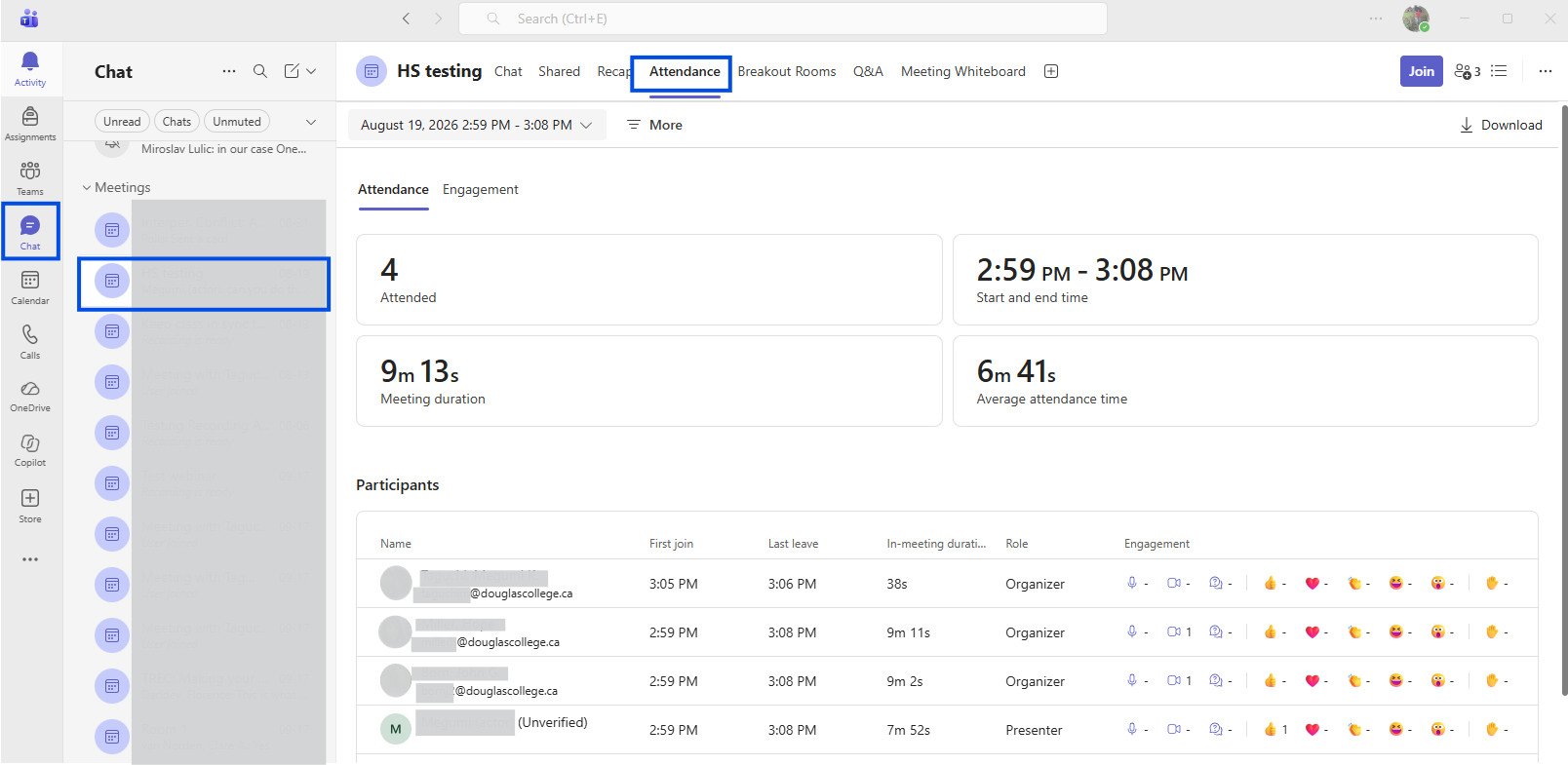
Basic attendance can be found in the Attendance tab the Microsoft Education dashboard. There is a detailed attendance report in the Teams meeting Attendance tab in the Teams app or browser for your meeting.
More information: Manage meeting attendance reports in Microsoft Teams
How can I invite students who enroll late to meetings and share recordings?
Late enroll students will see future meetings and recordings in Microsoft Education without any action by the instructor if Keep clas in sync is toggled on, or anyone in the class is allowed to join (via Attendee settings drop down).
Related resources: