Please note that Microsoft Education can get updated without notice. ATS resources will get updated with the new changes once the new behaviour is confirmed.
Following is a script you can copy and paste into a Blackboard Announcement to ensure your students are accessing Teams successfully.
++++++++++++++++++++++++++++++++++++++++++++++++++++++++++++++++++++++++
We will be using Microsoft Teams meetings to communicate and collaborate in this course. Be sure you have downloaded the app and are logged in using your DC credentials to successfully access all the required features: breakout rooms, chat attachments, whiteboards, etc.
Review the following Frequently Asked Questions below, which outline what is required by you BEFORE our scheduled Teams session.
Microsoft Teams Meetings
Where do I find my Microsoft Teams Meeting link in the course?
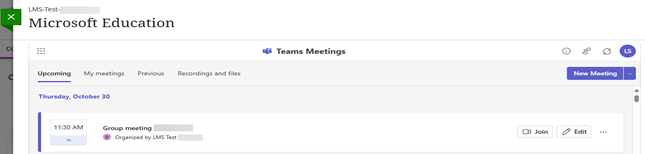
If Microsoft Teams Meetings is available within your course, you can access it by clicking on the Microsoft Education link first and then navigating to Meetings. By default, you will land on the Upcoming tab, where all the course meetings will be listed.
Please check the course announcements and emails your instructor sent out. Sometimes instructors can create Teams meetings outside the course and post links to meetings via those tools.
If you still can’t find it, please contact your instructor first for access to the Teams link. And, if you need more assistance, contact the Service Desk at servicedesk@douglascollege.ca, providing your student ID, course ID, and details.
How do I join a Teams Meeting in my course?
We recommend that you download Microsoft Teams Desktop App on your device before your scheduled meeting, then log in using your College email and CNA password. Users who have not installed the Desktop App can join the meetings through web browser, after signing in with their College email and CNA password.
Logging into Blackboard and joining your Teams meeting via Microsoft Education does not guarantee that you are already signed into to Teams with your Dougla College credentials.
If you do not sign in with your College login credentials, your instructor may ask you to leave and re-enter the meeting using your credentials to properly access all required Teams features/tools. You can sign into your Microsoft Office 365 account via the Douglas College logins page.
I thought I signed in, but I’m being asked to type in my name. What do I do?
Logging into Blacboard and entering Microsoft Education does not mean that you are signed into your Microsoft account. Before clicking on “Join”, sign in to your Microsoft account. If you are using the desktop app, make sure your Douglas College profile image is in the top right. If you are using the browser, login to your account via Douglas College logins.
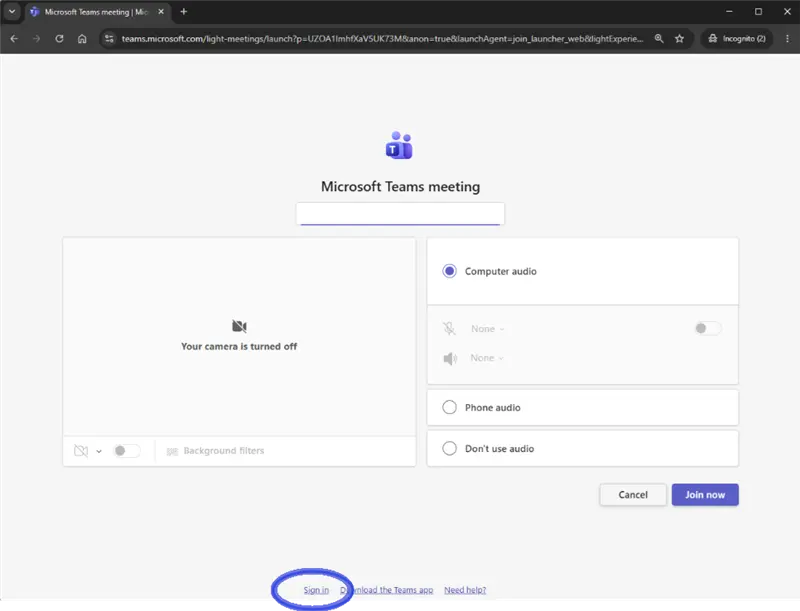
If you enter a Teams meeting and are prompted to type your name, you will enter as “unverified” and will not be able to access all the Teams tools. Instead, please sign in by clicking on “Sign in” at the bottom of the screen.
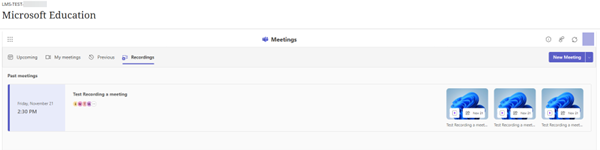
Where do I find my Teams Meeting recording?
You can watch the recording of a Teams meeting if has been shared with the class by your instructor. Recordings can be accessed by clicking on the Recordings tab.
Where do I get Microsoft Teams support?
More information can be found at Microsoft Support Page.
If you have any questions or need any further assistance in using Teams in Blackboard, please contact the ITS Service Desk at servicedesk@douglascollege.ca