
Please note that Microsoft Education can get updated without notice. ATS resources will get updated with the new changes once the new behaviour is confirmed.
Teams desktop app vs. Teams browser
You can enter Teams meetings via the desktop app or the browser using your Douglas College credentials. However, we highly recommend that both instructors and students use the Teams desktop app for a smoother experience and access to advanced meeting tools.
If you have an additional Microsoft 365 account (for example, from another institution) or a free Teams account, you may get automatically logged in when using the browser or app. Double-check that you are logged in with your Douglas College credentials before joining Teams meetings.
Teams desktop app
To use the Teams desktop app on your device, you must download the app from the Microsoft website (link). Once downloaded, log into the Teams app using your Douglas College credentials.
Teams meetings via the desktop app will appear in a pop-up with only the Teams meeting tools and functionalities.
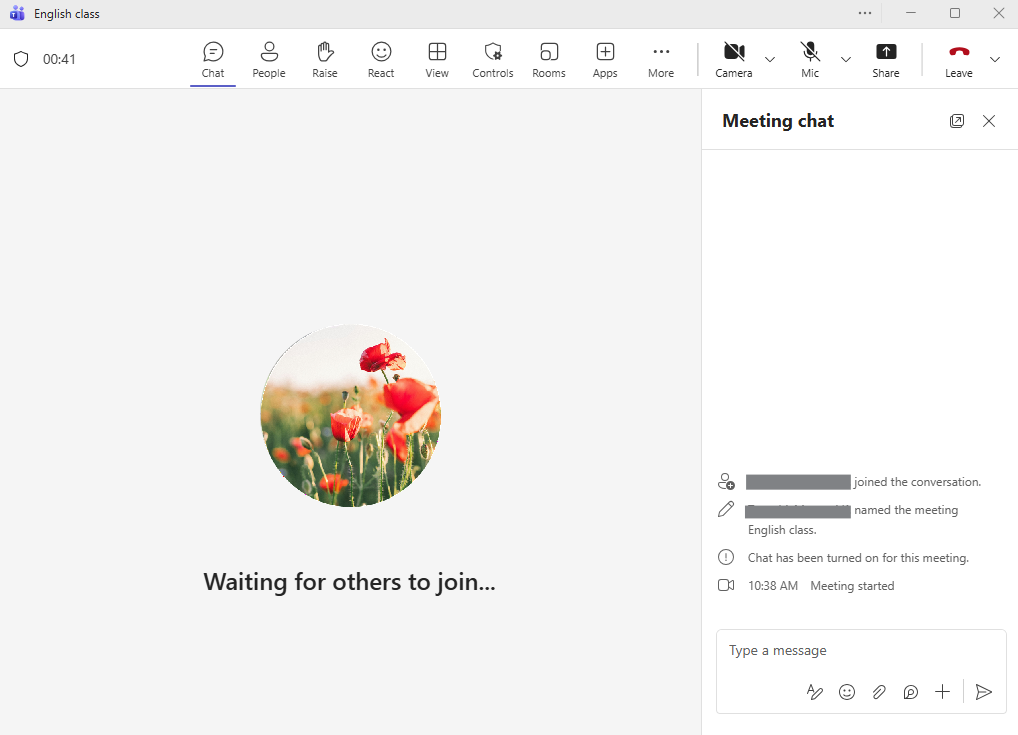
The Teams desktop app will have some additional privileges and affordances that are not available in the browser version:
-
Organizers and co-organizers can create and manage breakout rooms.
-
Chats can be popped out into a new window.
-
Larger gallery view of up to 49 participants
Teams browser
To enter Teams via the browser, navigate to the Douglas College website > Logins > Office 365 and email > Login with Douglas College credentials > Apps > Teams.
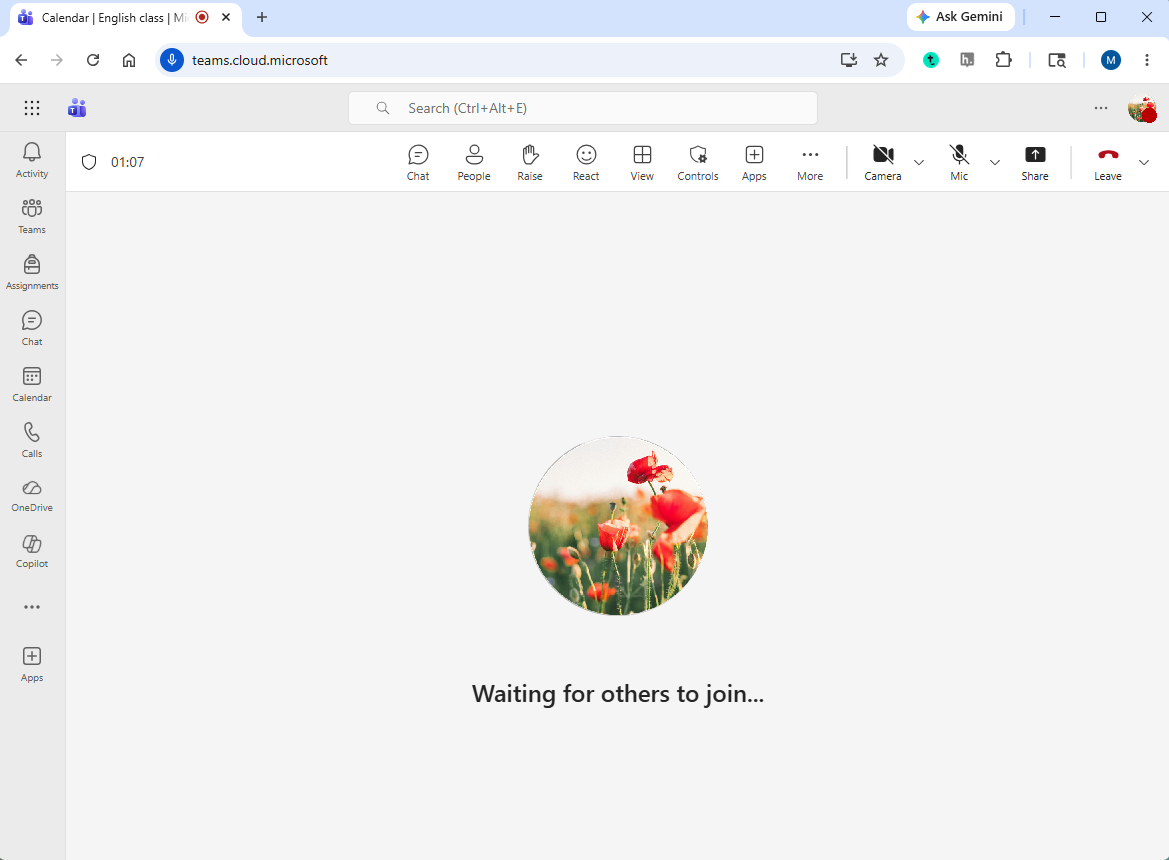
Joining Teams meetings via the browser will give you the ability to navigate to other browser tabs easily during your meeting. However, you will not have access to breakout rooms in the browser version.
Student access to Teams tools
Students joining meetings with non-Douglas College accounts, or anonymously by entering their name are not able to access all the Teams tools.
We highly recommend that students enter their Teams meetings via their Douglas College credentials.
Types of Teams participants and restrictions
|
Types of participants |
Indicators |
Restrictions |
|---|---|---|
|
Douglas College participants |
Students entering via their Douglas College credentials with have their full name (last name, first name). In addition, hovering over participants' icon will display their student email address. |
No restrictions |
|
Non-Douglas College login |
Students that have logged in to Teams with their personal email or an account from another institution will appear as “External” with an exclamation mark. 
|
|
|
Anonymous participants |
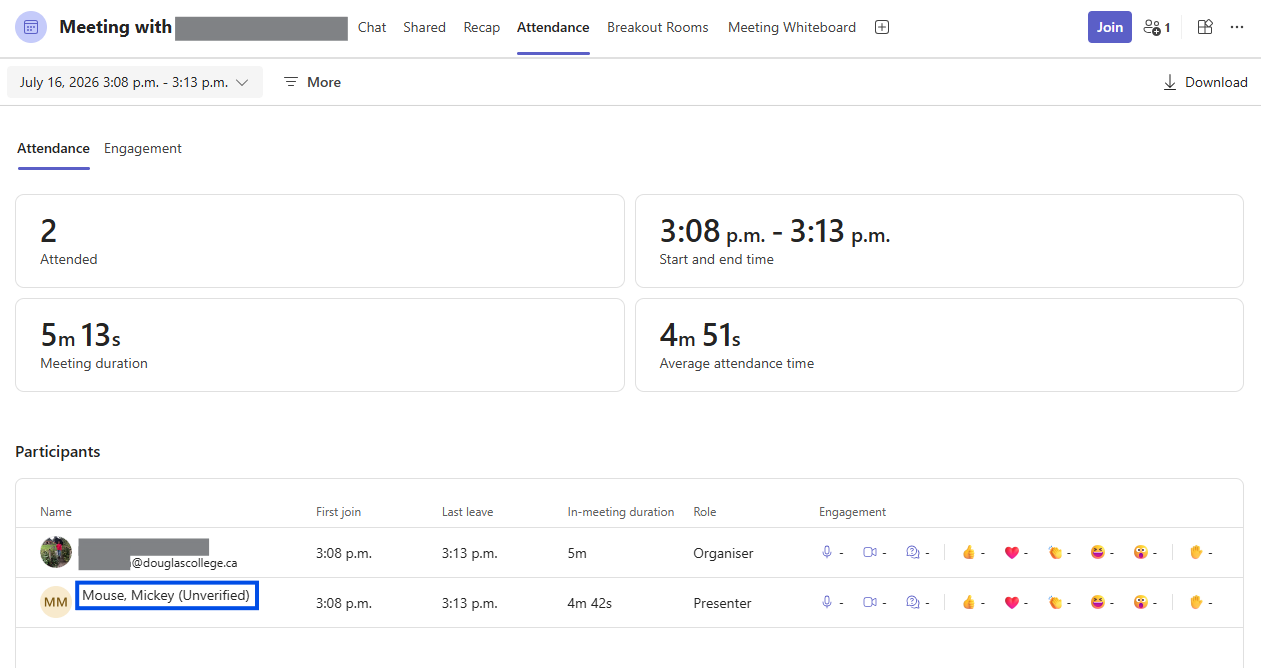
Students who have not logged in to Teams and have typed their name will appear as “Unverified” with a question mark. 
|
|
Attaching files in Teams meeting is not available if there is even just one participant who did not use their Douglas College credentials to join the meeting.
Checking student login
Instructors can check how students have entered the Teams meeting by navigating to the Participants list during the meeting, or checking the Attendance tab in their meeting chat channel after the meeting.
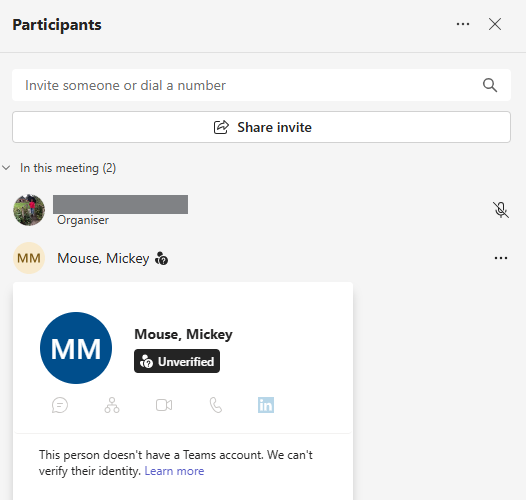
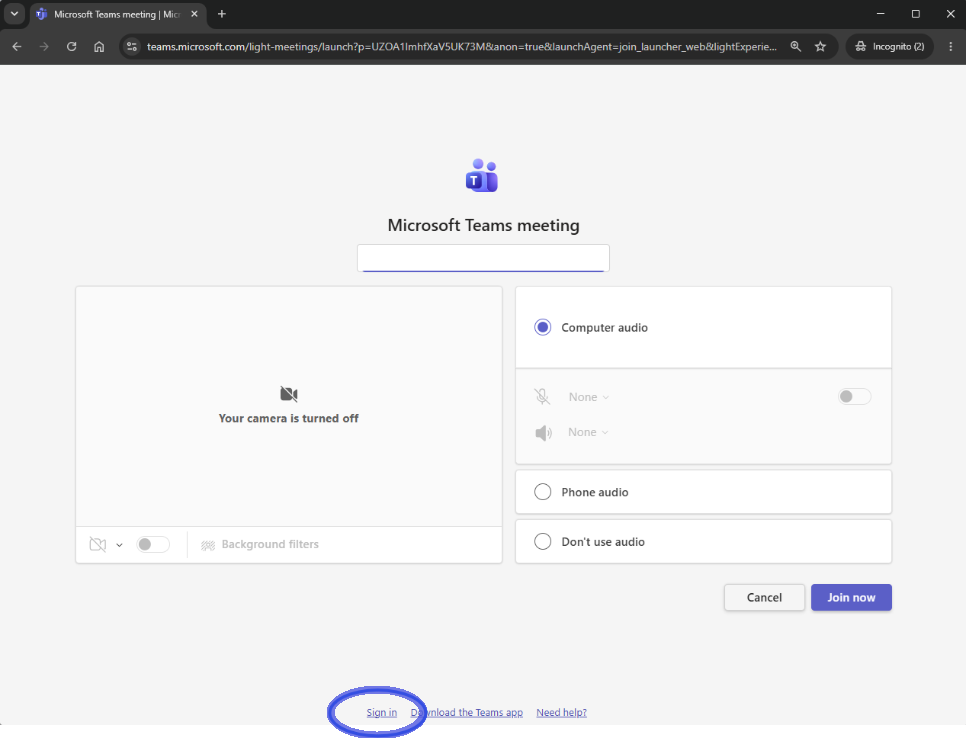
If students do not login to Teams, they will be prompted to type their name. They can still sign in by clicking on “Sign in” at the bottom of the screen.
Adjusting the lobby settings
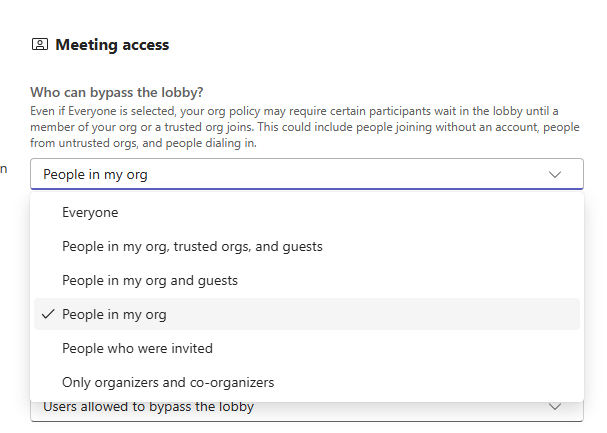
In your Teams Meeting Options, you can adjust who can bypass the lobby without being admitted. This allows you to easily filter out students who did not sign in with their Douglas College credentials.
For the question “Who can bypass the lobby?,” select People in my org to prevent students who did not use their Douglas College credentials from entering the meeting automatically. This will help you separate out students who did not use their credentials.
Communicate in advance
Prior to your first Teams meeting, ensure that your students know how to:
-
Find their Teams meeting link
-
Use the Teams desktop app
-
Log into their Microsoft 365 account with their Douglas College credentials
Use this script to help your communication:
Accessing Teams: Script for Instructor Announcement to Students
Accessing the Teams meeting link
There are three main ways to join Teams meetings: Blackboard via Microsoft Education LTI, Outlook email, and Microsoft 365 calendar. Regardless of the method you choose, you will be joining via a Teams meeting link.
Blackboard: You can join the meeting within Blackboard by selecting Microsoft Education LTI in the Content Market on the Content page, selecting the Join icon to the right of the meeting you wish to join.
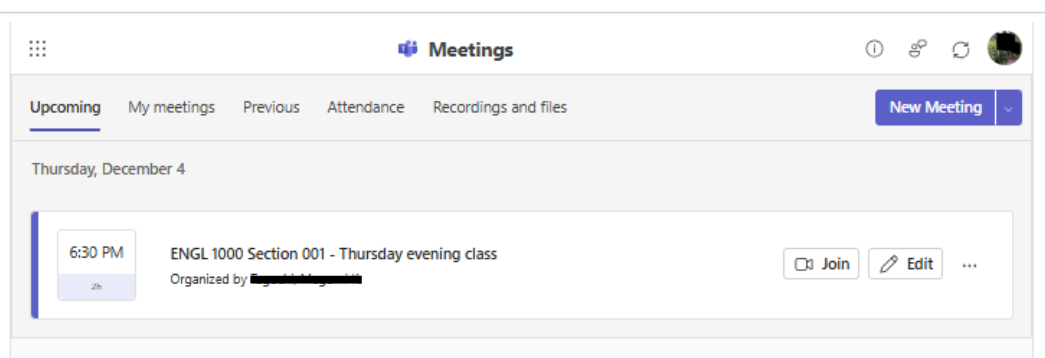
Joining Teams meetings via your Blackboard course does not guarantee that you are signed into your Microsoft 365 account with your Douglas College credentials. To ensure that you enter your meeting smoothly, log into your Teams account first.
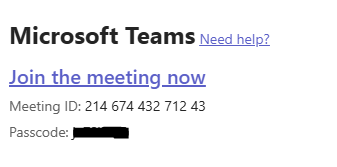
Outlook email: If you are invited to meetings, you will receive an email notification. Join the meeting by clicking the Join the meeting now link in the email.
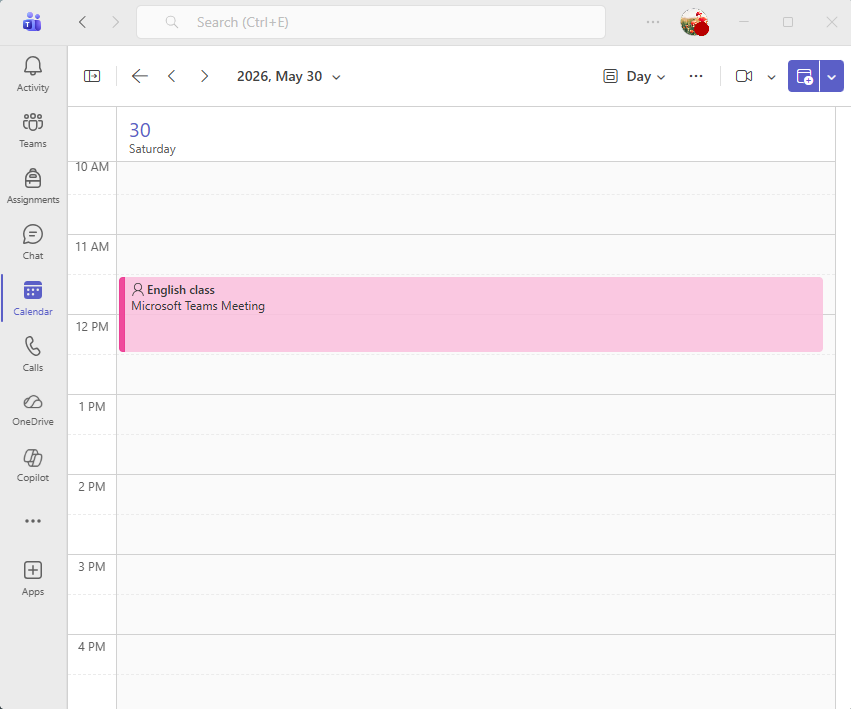
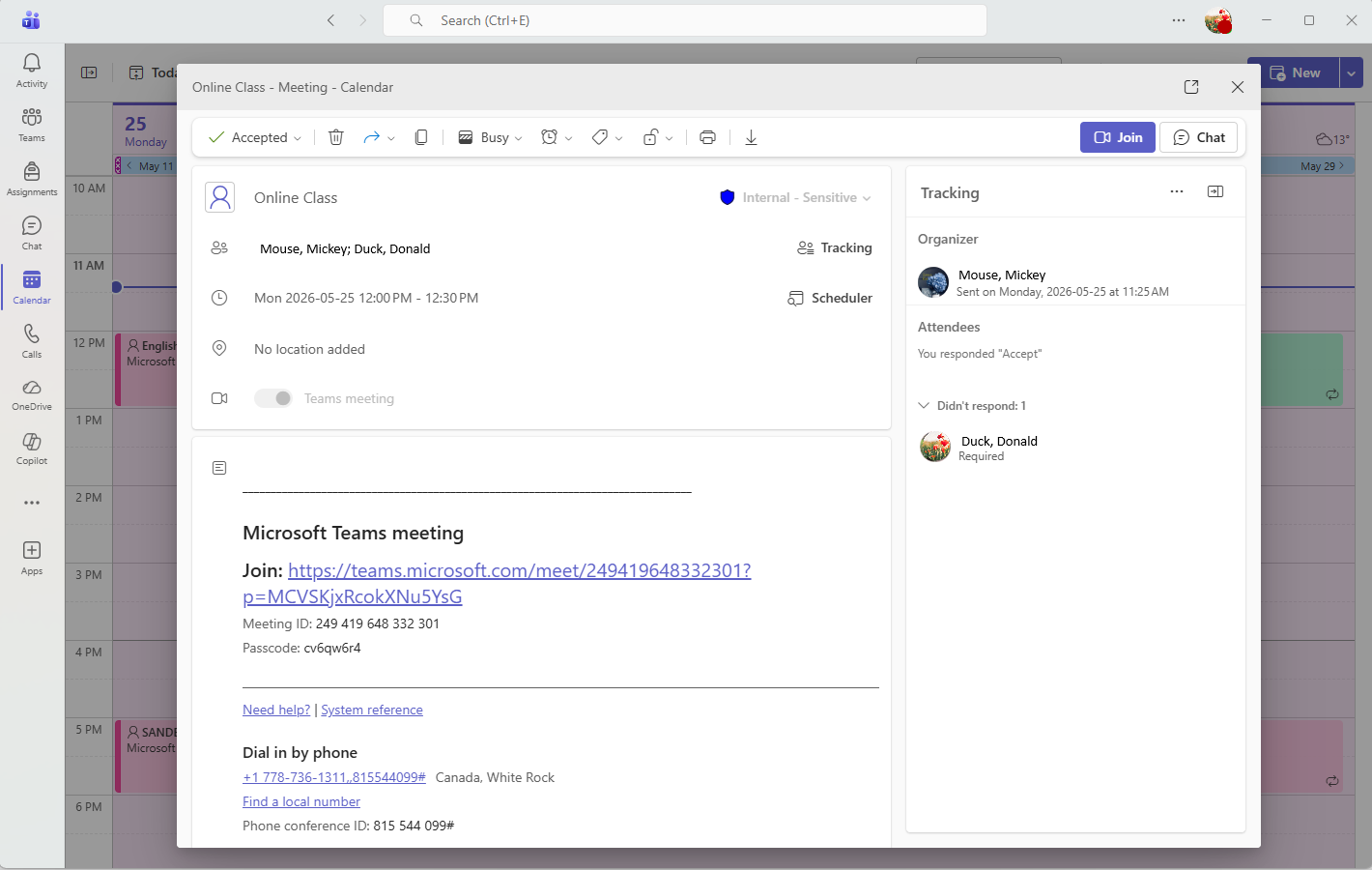
Calendar: Meetings created in Blackboard will appear in your Microsoft 365 Calendar via the Calendar tool or the Teams desktop app calendar. Select the meeting, then select Join.
|
|
|---|
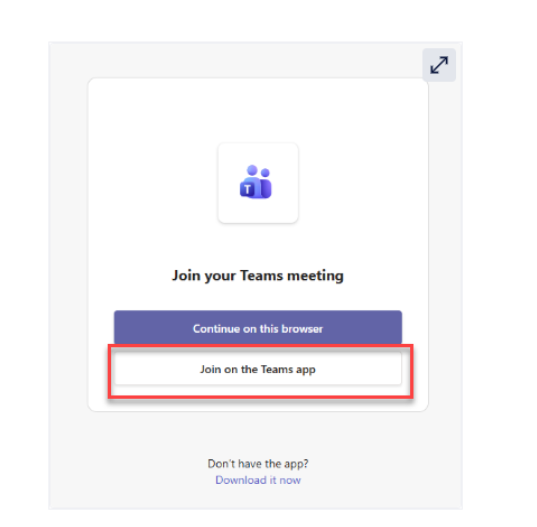
When accessing the Teams link, you will see a pop-up window asking you to either “Continue on this browser” or “Join on the Teams app.”
We recommend that you choose Join on the Teams app. If you are already logged into the desktop app, you will automatically join the meeting from there.
Switching between accounts
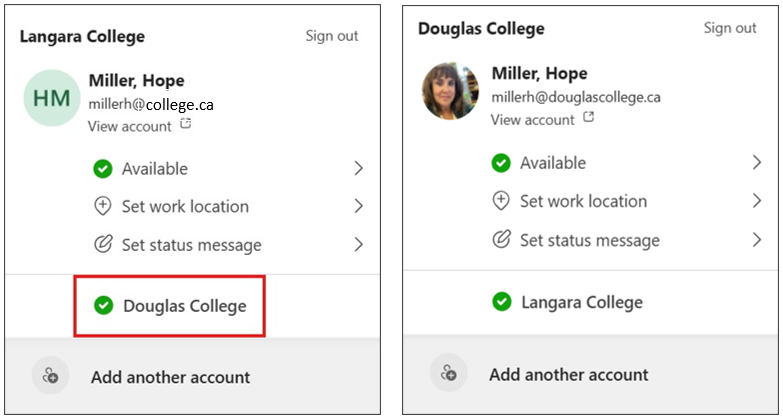
To check if you are signed into Teams with your Douglas College credentials, click on your avatar in the top right.

If it does not say "Douglas College" at the top, click on Douglas College at the bottom or Add another account. Once you are signed in, your Douglas College avatar, name, and email will appear at the top.