

An instructor may select a one-question-at-a-time presentation so that students:
-
Focus on a single question at a time without feeling overwhelmed by all the questions
-
Enhanced browser performance for student access on older computers
-
Enhanced experience for students in remote areas with poor network connections
-
Have an improved user experience when test taking from a mobile device, where touch scrolling can lead to mistakes
-
Navigate to the test from the course Content area, and click on the More options (…) link, then select Edit.
-
Click on the Test Settings gear icon. In the side panel that opens, scroll down to the Presentation Options selections, and select Display one question at a time.
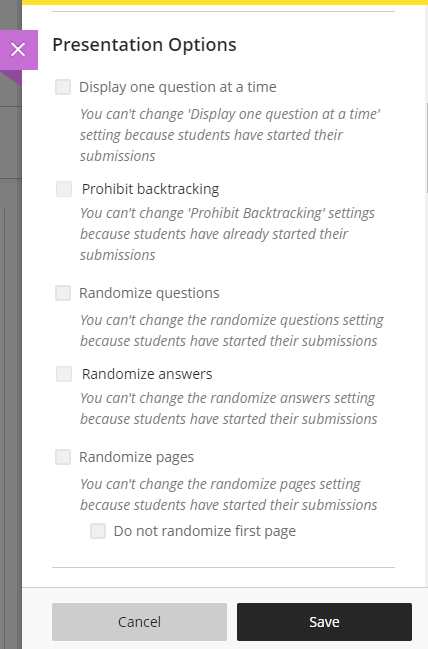
Note: This option also appears in Assignment Settings when the assignment includes questions.
3. Note that you can also Prohibit backtracking, Randomize questions, and Randomize answers (e.g., Multiple Choice and Matching answer choices are randomly ordered for students)