
Make sure to submit a request to add your interpreter or captioner to your Blackboard course. Once they are added to your course, they can be easily added to Teams meetings inside your Blackboard course.
Giving interpreters or captioners access to your meeting
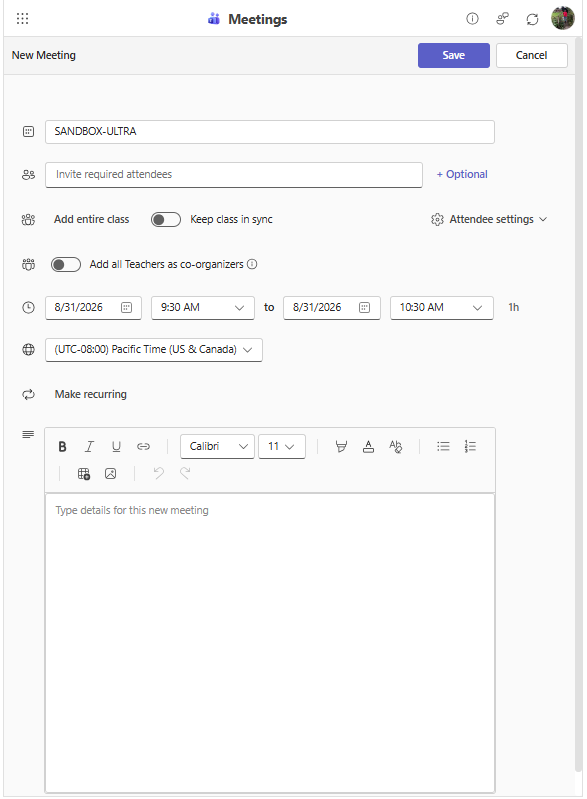
Add your interpreters or captioners to your meeting by:
-
Clicking Add entire class (with option to Keep class in sync)
-
Clicking Allow anyone to join via Attendee settings
Finding your interpreter or captioner’s email address
-
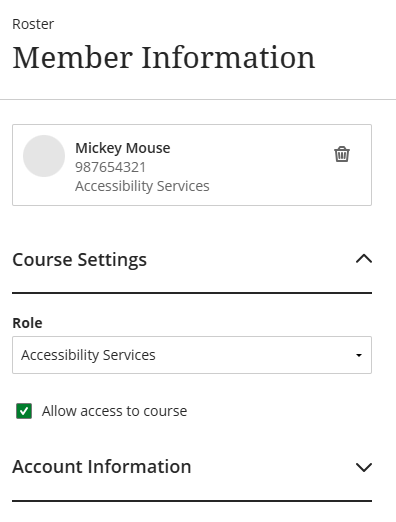
In the Details & Actions menu on the right, click Roster.
-
All course participants will display in this list.
-
Find their name and click the three dots (…) on the right.

4. Select Edit member information.
-
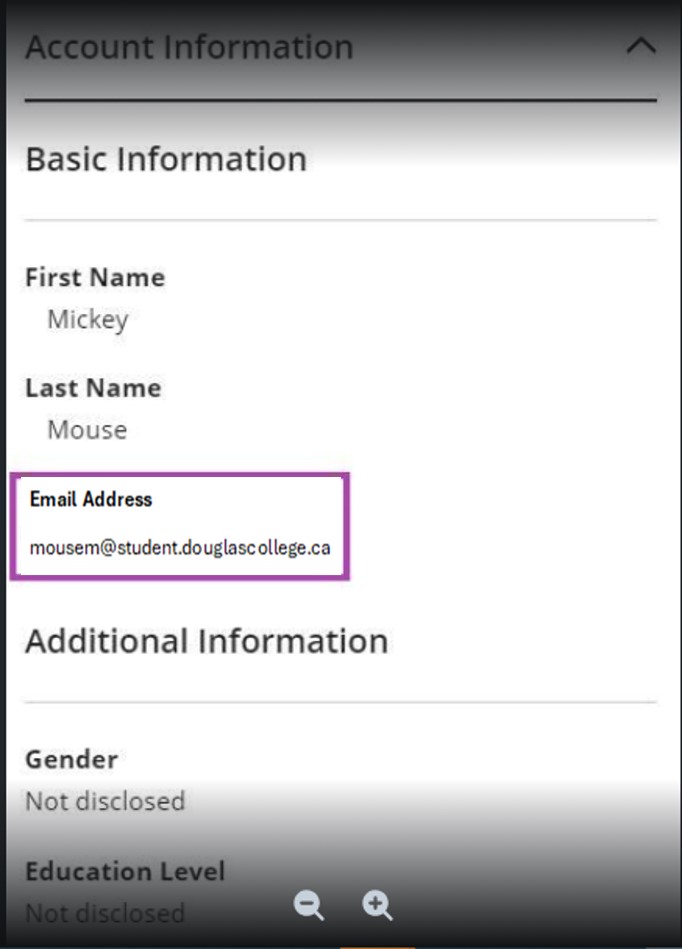
Click the down arrow beside Account Information.
-
Copy the email address.
Joining the Teams meeting
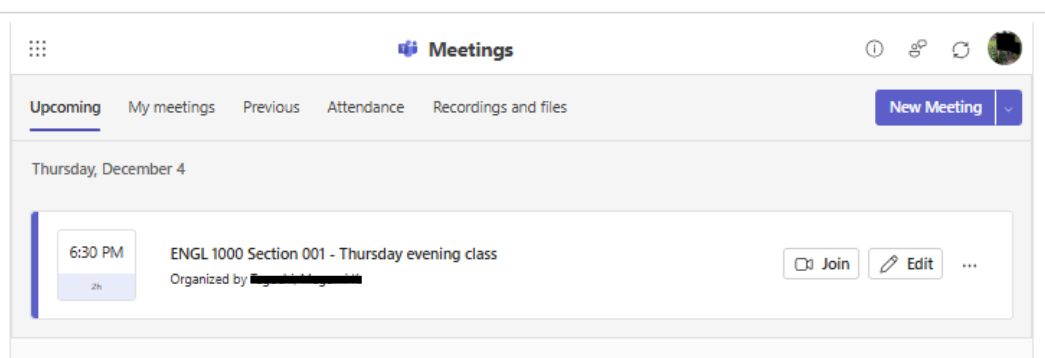
Interpreters can join the meeting within Blackboard by selecting Microsoft Education in Content Market on the Content page, and selecting the Join icon to the right of the meeting they wish to join.
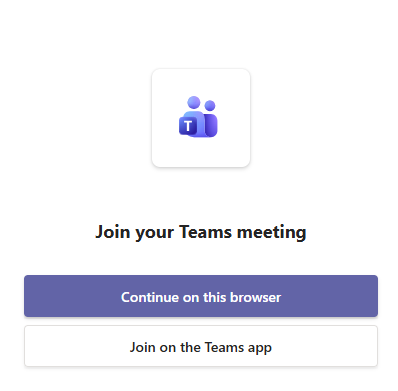
When interpreters and captioners click on the Teams meeting link, they will be prompted to choose to join via the browser or the app. Interpreters should join Teams meetings via the browser.
If you did not login to Teams prior to the meeting, you will prompted to type your name. Do not type your name here. Instead, click on Sign in at the bottom of your window.
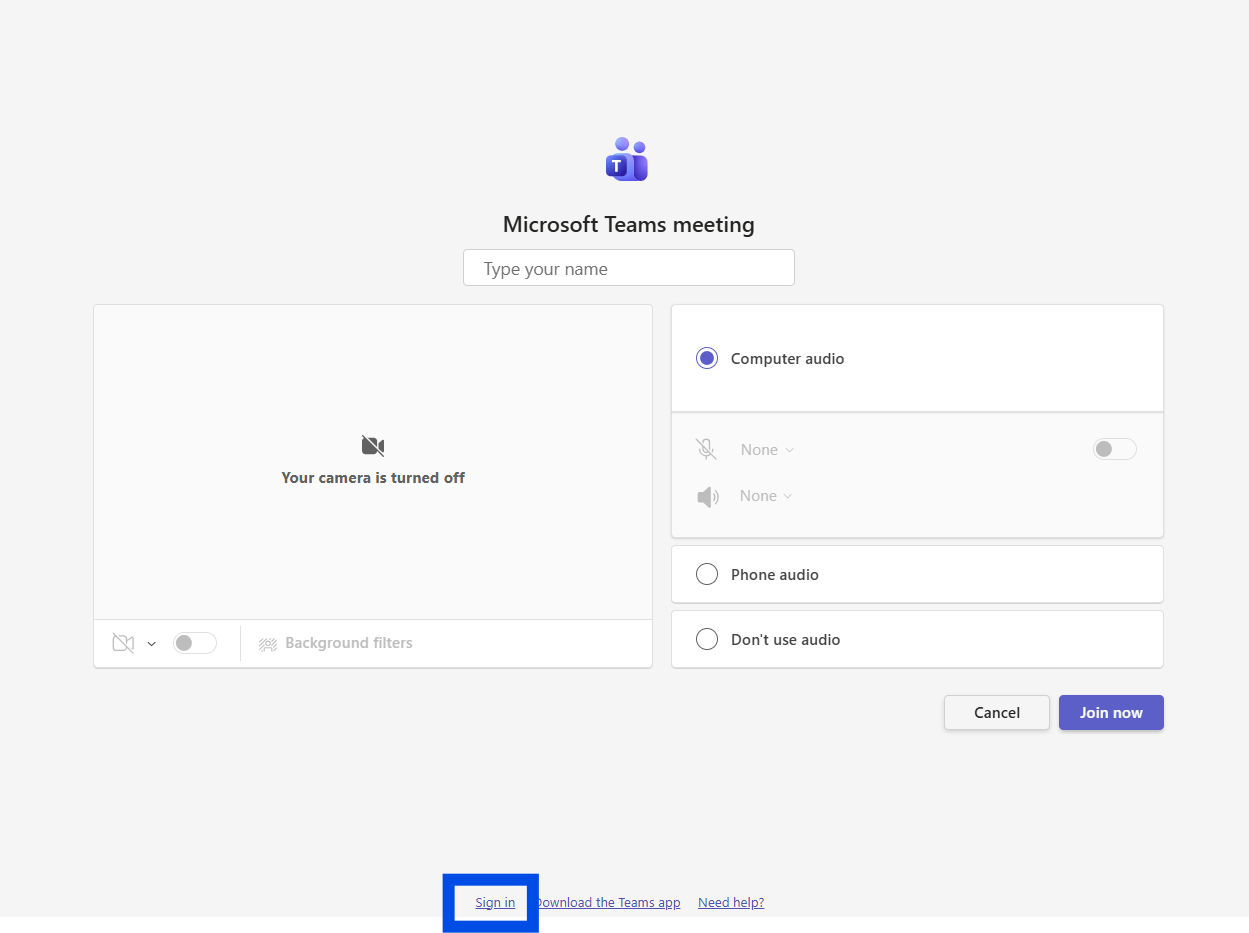
If you do not sign in to Teams and enter the meeting by typing in your name, you become an unverified participant.
Unverified attendees are not able to access any Microsoft Whiteboard in the meeting. If the interpreter or captioner cannot sign in to their Microsoft 365 account, ask them to re-enter the meeting. Unverified participants can only access the whiteboard if it shared before they join the meeting.
Pinning interpreters and captioners
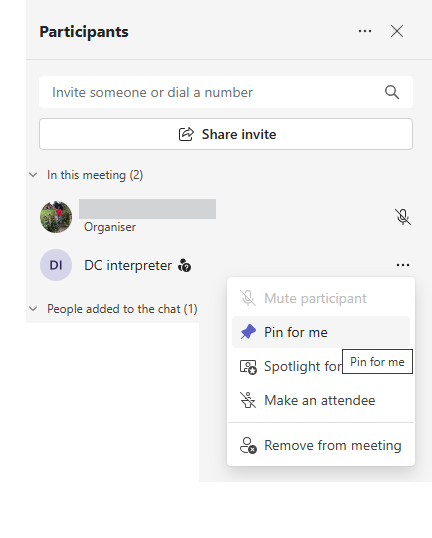
Students can pin their interpreter or captioner by navigating to Participants, clicking on the three dots to the right of their name and selecting Pin for me. This pins the individual just for that student, so that they are always visible.